Understanding WordPress Custom Post Types
WordPress Custom Post Types are a powerful feature that allows you to extend the functionality of your WordPress website beyond the standard posts and pages. If you’re looking to organize content in a structured and meaningful way, mastering WordPress Custom Post Types is essential. This comprehensive, step-by-step guide will walk you through the process of creating and managing them, even if you’re a complete beginner.
Think of it this way: WordPress comes pre-configured to handle blog posts and static pages. But what if you need to manage other types of content, such as properties, events, or products? That’s where WordPress Custom Post Types come in handy. They allow you to define these new content types and structure them according to your specific needs.
Why Use WordPress Custom Post Types?
- Organization: Keep your content organized and easily manageable.
- Flexibility: Create unique content structures tailored to your requirements.
- Improved User Experience: Present content in a clear and intuitive way for your visitors.
- Enhanced SEO: Optimize your content for search engines with custom fields and taxonomies.
Step 1: Planning Your Custom Post Type
Before diving into the technical aspects, it’s crucial to plan your WordPress Custom Post Types. Consider the following:
- Purpose: What type of content will this custom post type manage?
- Fields: What specific information needs to be captured for each item?
- Taxonomies: How will you categorize and tag your content (e.g., categories, tags)?
For example, if you’re creating a custom post type for ‘Books’, you might need fields for title, author, ISBN, publication date, and genre. You might use categories for genres and tags for keywords.
Step 2: Registering Your Custom Post Type
There are several ways to register WordPress Custom Post Types:
- Using a Plugin: Plugins like Custom Post Type UI (CPT UI) and Pods provide a user-friendly interface for creating custom post types without coding. This is often the easiest option for beginners.
- Programmatically (Using Code): You can register custom post types directly in your theme’s `functions.php` file or by creating a simple WordPress plugin. This offers more control and flexibility. This relates to topics covered in how to create a simple WordPress plugin. If you are new to plugin development then you can read this tutorial wordpress development
Using a Plugin (CPT UI)
- Install and activate the Custom Post Type UI plugin.
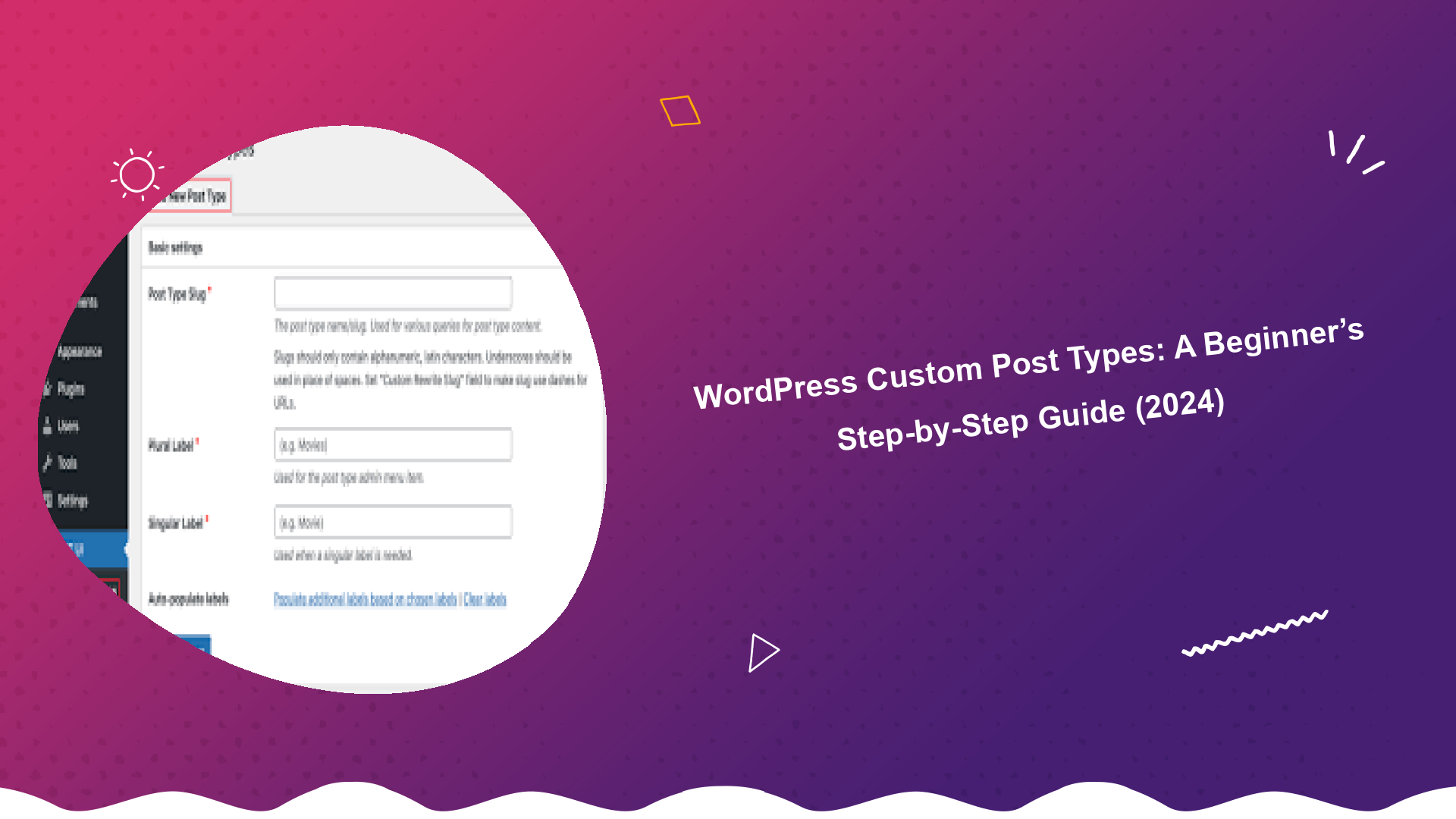
- Navigate to CPT UI > Add/Edit Post Types.
- Enter the post type slug (e.g., ‘books’). This should be lowercase and use hyphens for spaces.
- Enter the plural and singular labels (e.g., ‘Books’ and ‘Book’).
- Configure the settings, such as supported features (title, editor, thumbnail, etc.) and visibility options.
- Save your custom post type.
Programmatically Registering Custom Post Types
Add the following code to your theme’s `functions.php` file (or a custom plugin):
function register_book_post_type() {
    $labels = array(
        'name'               => _x( 'Books', 'post type general name', 'your-theme' ),
        'singular_name'      => _x( 'Book', 'post type singular name', 'your-theme' ),
        'menu_name'          => __( 'Books', 'your-theme' ),
        'name_admin_bar'     => __( 'Book', 'your-theme' ),
    );

    $args = array(
        'labels'             => $labels,
        'public'             => true,
        'publicly_queryable' => true,
        'show_ui'            => true,
        'show_in_menu'       => true,
        'query_var'          => true,
        'rewrite'            => array( 'slug' => 'book' ),
        'capability_type'    => 'post',
        'has_archive'        => true,
        'hierarchical'       => false,
        'menu_position'      => null,
        'supports'           => array( 'title', 'editor', 'author', 'thumbnail', 'excerpt', 'comments' ),
    );

    register_post_type( 'book', $args );
}
add_action( 'init', 'register_book_post_type' );
Important: Replace `’your-theme’` with your theme’s text domain. Remember that you can also write PHP programming for complete beginners. It is crucial to understand php functions
Step 3: Adding Custom Fields
Custom fields allow you to store additional information specific to your custom post type. The Advanced Custom Fields (ACF) plugin is a popular and powerful tool for managing custom fields.
- Install and activate the Advanced Custom Fields (ACF) plugin.
- Navigate to Custom Fields > Add New.
- Create a new field group.
- Add the desired fields (e.g., text, number, date, image).
- Configure the field settings, such as label, name, and type.
- Assign the field group to your custom post type (e.g., ‘Book’).
- Save your field group.
Step 4: Displaying Custom Post Types on Your Website
Once you’ve created your custom post type and added custom fields, you need to display them on your website.
- Using a Theme Template: Create a custom template file (e.g., `single-book.php`) to display individual book entries. You can use the `get_field()` function provided by ACF to retrieve the values of your custom fields.
- Using a Plugin: Plugins like Elementor and Beaver Builder offer drag-and-drop interfaces for creating custom templates and displaying custom post type data.
- Using a Custom Query: You can use the `WP_Query` class to retrieve and display custom post types programmatically.
Step 5: Customize WordPress Custom Post Types Templates
If you choose the theme template method, you can create a custom template file like `single-book.php` and put this code on it:
<?php
get_header();

if ( have_posts() ) : while ( have_posts() ) : the_post(); ?>

    <article id="post-<?php the_ID(); ?>" <?php post_class(); ?>>
        <h1><?php the_title(); ?></h1>
        <div class="entry-content">
            <?php the_content(); ?>
            <p>Author: <?php echo get_field('author'); ?></p>
            <p>ISBN: <?php echo get_field('isbn'); ?></p>
            <p>Publication Date: <?php echo get_field('publication_date'); ?></p>
        </div>
    </article>

<?php endwhile; endif;

get_footer();
?>
This is a basic implementation. Customize it with your CSS and other HTML tags.
Best Practices for WordPress Custom Post Types
- Use Descriptive Slugs: Choose clear and concise slugs for your custom post types.
- Properly Configure Taxonomies: Use categories and tags to organize and relate your content.
- Optimize for SEO: Use relevant keywords in your titles, descriptions, and content.
- Keep Your Code Clean: Follow coding standards and best practices for maintainability.
- Use a Child Theme: If you’re modifying your theme’s `functions.php` file, use a child theme to avoid losing your changes during theme updates.
Conclusion
WordPress Custom Post Types are a valuable tool for extending the functionality of your WordPress website and managing different types of content. By following this step-by-step guide, you can confidently create and manage your own custom post types, enhancing your website’s organization, flexibility, and user experience. Understanding the differences of WordPress or Laravel is essential to make decision to choose right platform.
Remember to plan carefully, choose the right method for registering your custom post types, and leverage the power of custom fields to capture the specific information you need. Happy coding!
For further reading on general website development, check out MDN Web Docs and for WordPress specific standards, review the WordPress Coding Standards. You can also follow other useful WordPress Developer Resources to improve your skills.