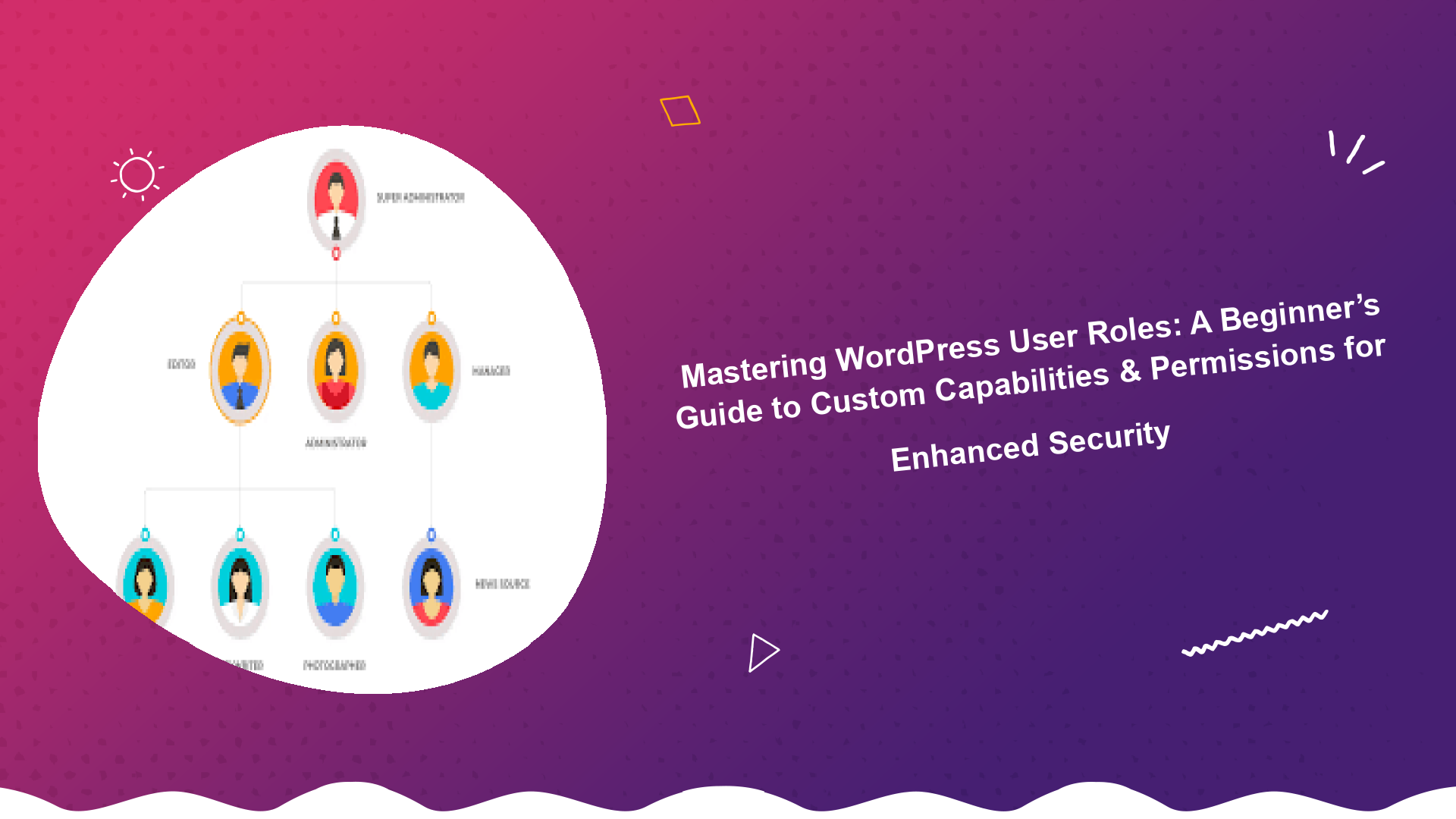
Welcome to the world of WordPress, where managing your website effectively is key to its success. For beginners, one of the most powerful yet often overlooked aspects of website administration is the ability to manage WordPress user roles. Understanding how to set up different user roles WordPress allows you to control who can do what on your site, from publishing posts to managing plugins, ensuring both efficiency and robust Security. This comprehensive guide will walk you through Mastering WordPress User Roles, exploring custom capabilities and permissions, and empowering you to maintain a secure and organized WordPress environment.
Whether you’re running a small blog, a growing business website, or an e-commerce store, granular control over user access is indispensable. It’s not just about keeping unwanted hands out; it’s about streamlining workflows, assigning responsibilities, and safeguarding your data. By the end of this tutorial, you’ll know how to optimize user permissions, create custom roles, and understand the intricate relationship between roles and capabilities, even if you’re a complete beginner.
Understanding WordPress User Roles and Capabilities for Beginners
Before diving into custom settings, it’s crucial to grasp the fundamental concepts of WordPress user roles and capabilities. Think of them as the twin pillars of user management on your WordPress site.
What are WordPress User Roles?
A WordPress user role is essentially a predefined set of permissions that dictates what a user can or cannot do on your website. When you add a new user to your WordPress installation, you assign them a specific role. This role then determines their level of access and the actions they can perform within the WordPress dashboard.
For instance, an author can write and publish their own posts, while a subscriber can only read content and manage their profile. These roles are designed to facilitate different levels of involvement and responsibility, making it easier to manage teams and delegate tasks.
What are User Capabilities in WordPress?
If roles are the categories, capabilities are the individual permissions that make up those categories. A capability is a specific action a user can perform. For example, edit_posts, publish_posts, manage_options, or delete_users are all distinct capabilities. Each WordPress user role is assigned a specific collection of these capabilities.
To truly understand WordPress user capabilities, consider them as the granular building blocks of user access. When you assign a user the “Editor” role, you’re essentially granting them a bundle of capabilities like edit_others_posts, publish_pages, moderate_comments, and many more. It’s this granular system that allows for such powerful and flexible user management within WordPress.
For an in-depth look at all available capabilities and their definitions, you can always refer to the official WordPress Codex on Roles and Capabilities.
Why are User Roles and Capabilities Important?
The importance of user roles and capabilities cannot be overstated, especially for anyone looking to run a professional and secure website. Here’s why they are critical:
- Security: Limiting user access to only what they need to do significantly enhances your site’s Security. It prevents accidental changes, malicious actions, or unauthorized access to sensitive areas of your site. This is a core component of any robust website security strategy.
- Workflow Efficiency: By clearly defining roles, you streamline operations. Authors focus on writing, editors on refining, and administrators on overall site health. This clarity reduces confusion and boosts productivity.
- Content Management: User roles help you control who can publish, edit, or delete content. This is particularly useful for multi-author blogs or content-heavy sites where quality control is paramount.
- Scalability: As your website grows and more people become involved, a well-structured user role system allows you to scale your team without compromising control or security. You can easily add new user roles WordPress as needed.
The Default WordPress User Roles Explained
Out-of-the-box, WordPress comes with five standard user roles, plus a “Super Admin” for Multisite installations. It’s essential for any beginner’s guide to WordPress roles to thoroughly understand these default options before considering custom solutions. Each role has a distinct set of capabilities tailored for common website administration tasks.
1. Administrator
The Administrator role is the most powerful role in a standard WordPress installation. An administrator has access to all administrative features within a single site. This includes managing posts, pages, comments, categories, tags, plugins, themes, users, and even site settings. They can delete any post, install new plugins, change the site’s theme, and manage WordPress user roles for all other users, including deleting other administrators. Essentially, an administrator has full control over the website. It’s crucial to exercise extreme caution when assigning this role, and ideally, only one or two trusted individuals should hold it.
2. Editor
Editors have significant control over the content sections of a WordPress site. They can publish, edit, and delete any post or page, including those written by other users. They can also moderate comments, manage categories and tags, and upload files. What they cannot do is manage plugins, themes, users (other than their own profile), or general site settings. This role is perfect for content managers, editorial teams, or individuals responsible for overseeing the overall content strategy and quality of your site.
3. Author
The Author role is designed for users who primarily focus on creating and managing their own content. An author can write, upload media, edit, and publish their own posts. They can also delete their own published posts. However, they cannot edit, publish, or delete posts by other users. They also lack access to site settings, themes, plugins, or user management features beyond their personal profile. This role is ideal for guest bloggers or regular contributors who are responsible for their own specific content, without needing to interact with or modify others’ work.
4. Contributor
Contributors have even more restricted access than authors, making it a great role for individuals who submit content but don’t have publishing privileges. A contributor can write and edit their own posts, but they cannot publish them. Their posts remain in a “Pending Review” status until an Editor or Administrator approves and publishes them. They can upload media but cannot create new categories or tags, though they can select existing ones. They cannot edit or delete published posts, even their own, once they have been published. This role is excellent for new writers, freelancers, or volunteers whose submissions need to be vetted before going live.
5. Subscriber
The Subscriber role is the most limited of all default roles. Users with this role can only log in to your WordPress site and manage their own profile. They cannot create content, manage comments, or access any administrative features. This role is often used for members-only content sites, forums, or e-commerce stores where users need an account to interact but not to contribute to the site’s content. While seemingly basic, understanding what are user capabilities in WordPress for a subscriber (essentially just read) is important for basic user authentication systems.
Super Admin (WordPress Multisite)
If you’re running a WordPress Multisite network, an additional role called “Super Admin” exists. The Super Admin has control over the entire network of sites. They can add and delete sites, manage themes and plugins across the network, and manage users for all sites. This role is not available in a standard single-site WordPress installation.
Understanding these default roles is your first step to effectively manage WordPress user roles. While they cover many scenarios, your specific needs might require more tailored solutions.
Why You Need Custom User Roles and Permissions
While the default WordPress user roles serve a good purpose for many websites, they often fall short when your site grows in complexity or when you need more granular control over specific tasks. This is where the power of custom user roles and permissions truly shines, allowing you to add new user roles WordPress that perfectly match your operational requirements.
Limitations of Default Roles
Consider these common scenarios where default roles might be insufficient:
- Specific Team Responsibilities: You might have an SEO manager who needs access to analytics plugins but shouldn’t be able to publish content, or a social media manager who needs to schedule posts but not edit existing ones. Default roles don’t offer this level of specialization.
- Content Restriction: You might want to restrict content by user role, allowing certain premium content to be visible only to paid members or specific user groups. WordPress out-of-the-box doesn’t easily support this without custom roles or plugins.
- Frontend-Only Users: Perhaps you have users who only need to interact with the frontend of your site (e.g., submitting forms, viewing private content) and should never see the WordPress dashboard.
- Developer Access: You might need to grant a developer access to theme files and plugins but prevent them from altering content or user accounts.
- Enhanced Security: Over-privileging users is a common security vulnerability. Custom roles allow you to adhere strictly to the “principle of least privilege,” giving users only the capabilities they absolutely require, thereby improving your site’s overall Security posture. This also helps in mitigating risks associated with compromised user accounts.
When you encounter these or similar situations, you’ll find yourself needing to change user permissions WordPress website beyond the standard options. Custom user roles allow you to precisely define who can access what, making your site more secure, efficient, and scalable.
Methods to Manage WordPress User Roles and Capabilities
There are primarily two ways to manage WordPress user roles and customize capabilities: using a plugin (recommended for beginners) or adding code directly to your theme’s functions.php file or a custom plugin. We will explore both methods in detail, allowing you to choose the approach that best suits your comfort level and technical expertise.
Method 1: Using a Plugin (Recommended for Beginners)
For most beginners and even many experienced users, using a dedicated WordPress user role editor plugin is by far the easiest and safest way to add new user roles WordPress and customize permissions. These plugins provide a user-friendly interface to manage all aspects of user roles without touching a single line of code.
Popular User Role Editor Plugins:
Several excellent plugins are available, but two stand out for their comprehensive features and ease of use:
- Members by MemberPress: This plugin is incredibly versatile. It allows you to create new roles, edit existing ones, assign multiple roles to a user, and even create content permissions to restrict content by user role. It integrates well with other plugins and provides a robust framework for advanced user management. You can find more details and download it from the official WordPress plugin repository.
- User Role Editor by Vladimir Garagulya: Another highly popular and powerful plugin, User Role Editor gives you fine-grained control over capabilities. You can add new capabilities, delete old ones, assign them to any role (including new custom roles), and even explicitly deny capabilities. It’s an excellent choice if you need very precise control over every single capability.
How to Create Custom Roles with a Plugin (General Steps):
While the exact steps might vary slightly depending on the plugin you choose, the general process to how to create custom roles WordPress typically involves:
- Install and Activate the Plugin: Navigate to Plugins > Add New in your WordPress dashboard, search for your chosen plugin (e.g., “Members” or “User Role Editor”), install it, and then activate it.
- Access the Role Editor: After activation, a new menu item, usually under Users or a dedicated top-level menu, will appear. Click on it to access the role editor interface.
- Create a New Role: Look for an option like “Add New Role” or “Add Role.” You’ll typically need to provide a Role Name (e.g., “SEO Manager”) and a Display Name (the user-friendly name that appears in dropdowns).
- Assign Capabilities: This is the core step. The plugin will usually present a list of all available WordPress capabilities with checkboxes. You can then select which capabilities your new custom role should have. For instance, an “SEO Manager” might need
edit_posts,edit_published_posts,upload_files, and capabilities related to specific SEO plugins, but notmanage_optionsordelete_users. - Save Your Changes: Once you’ve selected all the desired capabilities, save your new role.
- Assign the Role to Users: Now, when you go to Users > All Users and edit an individual user’s profile, you’ll see your newly created custom role available in the role dropdown menu. You can then assign it to the appropriate users.
Using a plugin is the best way to manage user access WordPress for beginners, offering a visual and straightforward approach to configuring even complex permissions. It also provides an easy way to revert changes if something goes wrong, making it a low-risk option. If you’re just starting with your wordpress setup, getting familiar with plugins like these is a great first step.
Method 2: Manually via Code (For Advanced Users)
For those comfortable with code and who want to avoid extra plugins, you can add new user roles WordPress and modify capabilities directly using WordPress’s built-in functions. This method requires editing your theme’s functions.php file or, even better, creating a custom plugin. Always use a WordPress Tutorials-recommended child theme when modifying functions.php, as direct edits to parent themes will be lost during updates. This method offers ultimate control but comes with a higher risk of breaking your site if not done correctly.
Creating a New Custom Role with Capabilities:
To create a new role and assign capabilities, you’ll primarily use the add_role() function. This function takes three arguments: the role’s unique slug (name), its display name, and an array of capabilities it should have. You should run this function once, ideally within an `admin_init` hook, and then remove it after the role is successfully created to prevent unnecessary database writes on every page load.
<?php
function dwp_add_custom_user_role() {
    add_role(
        'project_manager', // Unique slug for the role
        __( 'Project Manager', 'text-domain' ), // Display name
        array(
            'read'         => true,  // Can read posts
            'edit_posts'   => true,  // Can edit their own posts
            'upload_files' => true,  // Can upload media files
            'edit_pages'   => true,  // Can edit pages
            'edit_others_pages' => true, // Can edit pages created by others
            'publish_pages' => true, // Can publish pages
            // You can add many more capabilities here
            'read_private_pages' => true, // Can read private pages
            'delete_pages' => true, // Can delete pages
            'delete_others_pages' => true // Can delete pages created by others
        )
    );
}
add_action( 'init', 'dwp_add_custom_user_role' );

// To remove the role after it's been added (optional, but good practice for 'init' hook)
// remove_action( 'init', 'dwp_add_custom_user_role' );
// Note: Roles are stored in the database, so this function only needs to run once.
// Once added, you can comment out or remove the 'add_action' line.
// Alternatively, wrap it in a conditional check to see if the role already exists.
?>
This code snippet defines a new role named “Project Manager” and grants it several capabilities related to managing pages and media. Once you’ve run this code (by saving it in your child theme’s functions.php or a custom plugin), the “Project Manager” role will appear in your WordPress user management interface. You can then assign it to users.
To ensure you’re not constantly adding the role on every page load (which is unnecessary as roles are stored in the database), you should ideally run this code once, perhaps during theme activation, or wrap it in a conditional check like if ( ! get_role( 'project_manager' ) ) { ... }. After it’s run successfully, you can comment out or remove the add_action line.
Modifying Capabilities of Existing Roles:
You can also directly edit WordPress user permissions for existing roles using the add_cap() and remove_cap() methods of the WP_Role class. This allows you to grant specific capabilities WordPress default roles might not have or remove capabilities they do.
<?php
function dwp_modify_editor_role() {
    $editor_role = get_role( 'editor' ); // Get the Editor role object

    if ( ! empty( $editor_role ) ) {
        // Add a capability to the Editor role
        $editor_role->add_cap( 'manage_categories' ); // Editors can now manage categories

        // Remove a capability from the Editor role
        // $editor_role->remove_cap( 'edit_others_posts' ); // Example: If you want to restrict them further
    }

    // Example: Grant subscriber the ability to upload files (usually not recommended)
    $subscriber_role = get_role( 'subscriber' );
    if ( ! empty( $subscriber_role ) ) {
        // $subscriber_role->add_cap( 'upload_files' ); // Use with caution!
    }
}
add_action( 'admin_init', 'dwp_modify_editor_role' );
?>
Again, this code only needs to run once. After the capabilities are modified and saved to the database, you can comment out or remove the add_action line to prevent it from running unnecessarily on subsequent page loads.
Working with code provides the most flexibility and is often preferred by those who want to avoid plugin bloat or have very specific, unique requirements. However, it demands a solid understanding of WordPress development and best practices.
Implementing Custom Capabilities and Permissions for Fine-Grained Control
Once you’ve defined your custom roles and understand how to grant specific capabilities WordPress provides, the next step is to integrate these into your website’s functionality. This often involves ensuring that certain content or features are only accessible to users with specific capabilities.
Checking for Capabilities in Your Theme or Plugin Code:
WordPress provides functions like current_user_can() to check if the currently logged-in user has a particular capability. This is incredibly useful for conditionally displaying content or features.
<?php
if ( current_user_can( 'project_manager' ) ) {
    echo '<p>Welcome, Project Manager! Here are your exclusive project updates.</p>';
    // Display project management dashboard or specific links
} else {
    echo '<p>You do not have permission to view project updates.</p>';
}

// You can also check for specific capabilities
if ( current_user_can( 'publish_pages' ) ) {
    echo '<p>You can publish pages on this site.</p>';
}
?>
This approach allows you to restrict content by user role or capability, providing a tailored experience for different user types. Whether you set up different user roles WordPress for client access, internal teams, or premium members, `current_user_can()` is your go-to function for implementing permission checks.
Best Practices for Managing WordPress User Roles
Effective user role management goes beyond just creating roles; it involves strategic planning and ongoing maintenance. Adhering to these best practices will help you maintain a secure, organized, and efficient WordPress site.
1. Principle of Least Privilege (PoLP)
This is arguably the most crucial principle: always grant users only the minimum capabilities they need to perform their tasks, and no more. For example, if a user only needs to write articles, don’t make them an Editor or Administrator. By limiting access, you drastically reduce the potential damage from a compromised account or an accidental mistake. This directly enhances your WordPress user roles and security.
2. Regular Audits and Reviews
Periodically review your user list and their assigned roles. As teams change, projects evolve, or staff leave, user permissions can become outdated. Removing inactive users and adjusting roles for active ones ensures that access levels remain appropriate. Schedule quarterly or bi-annual reviews, especially for sites with many users.
3. Backup Your Website Before Making Major Changes
Before making significant changes to user roles, especially if you’re working with code, always perform a full backup of your WordPress website. This safety net allows you to easily restore your site if an error occurs. Many hosting providers offer backup solutions, or you can use a reliable automatic WordPress website backup plugin.
4. Document Your Custom Roles
If you’ve created custom roles or extensively modified default ones, document them! Keep a record of what each custom role is for, what capabilities it has, and why those specific permissions were granted. This documentation will be invaluable for future reference, new team members, and troubleshooting.
5. Test Thoroughly
After creating or modifying roles, log in as a user with that role and test its capabilities. Ensure they can access what they should and, equally important, cannot access what they shouldn’t. This step is critical to confirm your permissions are working as intended and that you haven’t inadvertently exposed sensitive areas or restricted necessary functionality.
6. Use Unique and Strong Passwords for All Users
While user roles control what users can do once logged in, strong passwords prevent unauthorized logins in the first place. Enforce strong password policies for all users to bolster your site’s overall Security. Consider implementing two-factor authentication for an extra layer of protection.
7. Educate Your Users
Inform your users about their specific roles and responsibilities. Clarify what they can and cannot do. This reduces confusion and helps maintain the integrity of your site’s access structure.
By following these best practices, you can effectively manage WordPress user roles, ensuring a smooth workflow and a secure online presence. These steps will help you to explain WordPress user roles simply to your team and maintain a robust system.
Security Implications of WordPress User Roles
The careful management of WordPress user roles is not merely about organizing your team; it’s a critical component of your website’s overall Security strategy. Misconfigured or overly permissive user roles are a significant vulnerability that attackers frequently exploit.
Preventing Unauthorized Access
Every additional capability granted to a user increases the potential attack surface. If a Contributor account is compromised, the damage is minimal: perhaps an unapproved draft post. If an Administrator account is compromised, the attacker gains full control over your site, potentially leading to data loss, website defacement, malware injection, or complete site takeover. By sticking to the principle of least privilege, you significantly reduce the impact of such breaches.
Mitigating Risks from Malicious Code or Plugins
Some plugins or themes might introduce new capabilities or even vulnerabilities. By having well-defined user roles, you can ensure that only trusted administrators have the capability to install and activate new plugins and themes, preventing malicious or poorly coded extensions from being introduced by less privileged users. Regularly auditing your plugins and themes is also a vital part of maintaining WordPress security.
Protecting Sensitive Data
Your WordPress site likely contains sensitive information, whether it’s customer data, private content, or intellectual property. User roles allow you to gate access to this information. For example, if you restrict content by user role, only those with the appropriate permissions can view confidential reports or premium content. This ensures data privacy and compliance.
Combating Insider Threats
While often overlooked, insider threats (malicious or accidental actions by legitimate users) can be just as damaging as external attacks. Clearly defined and strictly enforced user roles help mitigate this by ensuring that no single individual has excessive power, and that actions are within their defined scope of responsibility. This also makes accountability clearer.
In essence, thoughtful user role configuration is a proactive defense mechanism. It’s about building layers of protection around your website, ensuring that even if one layer is breached, the damage is contained. Regularly reviewing and optimizing your user roles is an ongoing task that contributes significantly to the long-term health and security of your WordPress installation.
Troubleshooting Common User Role Issues
Even with careful planning, you might encounter issues when managing WordPress user roles. Here are some common problems and how to troubleshoot them:
1. User Cannot Access What They Should
- Check Assigned Role: First, verify that the user is assigned the correct role in their user profile (Users > All Users > Edit).
- Review Capabilities: If it’s a custom role or a modified default role, double-check that the role has the specific capabilities required for the action. For instance, if they can’t publish, ensure they have
publish_postsorpublish_pages. - Plugin Conflicts: Some plugins (especially membership or security plugins) can interfere with default WordPress capabilities. Temporarily deactivate other plugins to see if the issue resolves.
- Cache Issues: Clear any caching plugins or server-side caches, as old permissions might be cached.
2. User Can Access Too Much
- Principle of Least Privilege Violated: This often means you’ve assigned a role with too many capabilities. Re-evaluate the user’s role and remove unnecessary capabilities.
- Default Role Overlap: Ensure you haven’t accidentally modified a default role to grant excessive permissions.
- Plugin-Added Capabilities: Some plugins add capabilities to existing roles by default. Review plugin settings or use a user role editor plugin to inspect and remove these.
- Manual Code Errors: If you’ve used code to modify roles, check your `add_cap()` and `remove_cap()` calls for errors or unintended additions.
3. Custom Role Not Appearing After Code Addition
- Code Execution: Ensure your code snippet to add the role (e.g., using
add_role()) has actually run. It usually needs to execute once. If you commented out the `add_action` call too soon, or if there was a PHP error preventing execution, the role might not have been added to the database. - Syntax Errors: Check your
functions.phpor custom plugin file for PHP syntax errors, which can prevent the code from running at all. - Role Already Exists: If you’re trying to add a role with a slug that already exists, WordPress will simply ignore your
add_role()call.
For more detailed troubleshooting guides and solutions, you can always refer to general WordPress Tutorials and support forums. Identifying the root cause often involves a systematic process of elimination.
Conclusion: Empower Your WordPress Site with Smart User Role Management
Mastering WordPress User Roles is an essential skill for anyone serious about managing a professional and secure website. From understanding the core concepts of roles and capabilities to confidently creating and assigning custom permissions, you now have the knowledge to take full control of your site’s access structure.
By implementing custom roles, whether through user-friendly plugins or direct code modifications, you can streamline your workflow, enhance your site’s security, and ensure that every team member has precisely the access they need – no more, no less. Remember to prioritize the principle of least privilege, conduct regular audits, and always back up your site. Embrace these practices, and you’ll build a more robust, efficient, and secure WordPress presence for yourself and your users. Start optimizing your user permissions today and experience the difference!