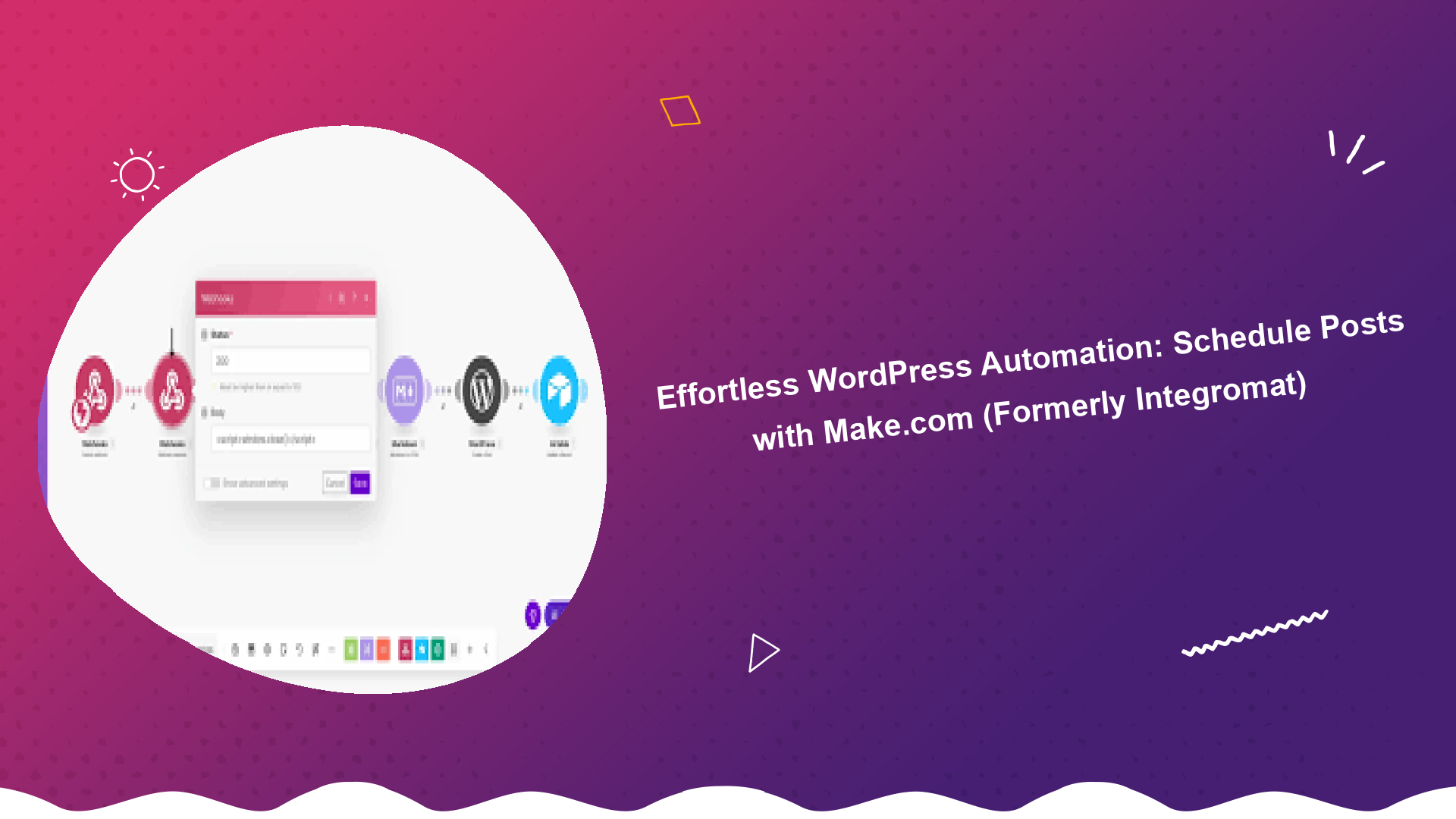
Unlock Effortless WordPress Automation with Make.com
Are you tired of manually posting content to your WordPress site? Do you wish there was a way to streamline your content creation and publishing process? Look no further! This guide will walk you through the power of WordPress automation with Make.com (formerly Integromat) and show you how to schedule posts effortlessly.
WordPress automation with Make.com allows you to connect your WordPress site to hundreds of other apps and services, automating repetitive tasks and freeing up your valuable time. One of the most popular uses of Make.com is to schedule WordPress posts, ensuring a consistent stream of content even when you’re not actively working on your site.
Why Automate WordPress Post Scheduling?
- Consistency: Maintain a regular posting schedule to keep your audience engaged.
- Time Savings: Focus on creating great content, not manually publishing it.
- Increased Efficiency: Automate tasks to reduce errors and improve workflow.
- Flexibility: Schedule posts from anywhere, anytime.
- Improved SEO: Consistent posting frequency can positively impact your search engine rankings.
Setting Up WordPress Automation with Make.com: A Step-by-Step Guide
Let’s dive into the practical steps of setting up WordPress automation with Make.com to schedule your posts:
Step 1: Create a Make.com Account
If you don’t already have one, sign up for a free Make.com account at Make.com.
Step 2: Create a New Scenario
In Make.com, a ‘Scenario’ is a visual representation of your automated workflow. Click the ‘Create a new scenario’ button. Search for and select WordPress as your first module.
Step 3: Connect Your WordPress Site
Make.com will prompt you to connect your WordPress site. This usually involves installing a Make.com plugin on your WordPress site (search for ‘Integromat’ in the WordPress plugin directory, it’s the same plugin) and entering your WordPress URL, username, and password. Be sure to create an application password in your user settings for added security.
Step 4: Choose a Trigger
A ‘Trigger’ initiates your scenario. For scheduling posts, a common trigger is the ‘Scheduler’ module. This allows you to specify a frequency (e.g., daily, weekly, monthly) at which the scenario should run. You can also integrate with other platforms like Google Sheets or Airtable to trigger the creation of posts from data.
Step 5: Add the WordPress Module
Add a WordPress module after your trigger. The most relevant action for scheduling posts is ‘Create a Post’.
Step 6: Configure the WordPress Module
This is where you’ll map the data to create your WordPress post. You’ll need to specify:
- Post Title: The title of your post.
- Post Content: The body of your post.
- Post Status: Set this to ‘Publish’ to immediately publish the post, or ‘Draft’ to save it as a draft. You can set this to ‘Scheduled’ and provide a ‘Publish Date’ to schedule the post for a later time.
- Post Category: Assign a category to your post.
- Post Tags: Add relevant tags to your post.
- Featured Image: You can also automate the setting of a featured image by providing a URL to the image.
You can use variables from previous modules (e.g., from a Google Sheet) to populate these fields. This is where the true power of WordPress automation with Make.com comes into play.
Step 7: Test and Activate Your Scenario
Before activating your scenario, test it thoroughly. Make.com provides tools to run your scenario and check for errors. Once you’re satisfied, activate the scenario to begin automating your WordPress post scheduling.
Advanced WordPress Automation Workflows
Once you’ve mastered the basics, you can explore more advanced WordPress automation with Make.com workflows:
- Automate Post Creation from Google Sheets: Create posts automatically from data in a Google Sheet. This is perfect for managing a content calendar and bulk-uploading posts. This is a great method to keep track of all your posts in a single spreadsheet.
- Automate Social Media Sharing: Automatically share new WordPress posts on social media platforms like Twitter, Facebook, and LinkedIn using Make.com’s social media modules.
- Automate Lead Generation: When a new contact form is submitted on your WordPress site, automatically add them to your email marketing list in Mailchimp or ConvertKit.
- Automate Backups: Regularly back up your WordPress database and files to a cloud storage service like Dropbox or Google Drive.
- Improve WordPress website speed optimization, by automatically optimizing images and other assets through integrations.
Tips for Effective WordPress Automation
- Plan your workflows carefully: Before you start automating, map out your desired workflows and identify the key steps.
- Start small: Begin with simple automations and gradually expand to more complex workflows.
- Test thoroughly: Always test your scenarios before activating them to ensure they work as expected.
- Monitor your automations: Regularly monitor your automations to identify and fix any issues.
- Use error handling: Implement error handling in your scenarios to gracefully handle unexpected errors.
- Consider Advanced Custom Fields (ACF) if you need very specific post structure, as it allows for advanced data structuring.
Troubleshooting Common Issues
Even with careful planning, you may encounter issues when setting up WordPress automation with Make.com. Here are some common troubleshooting tips:
- Connection problems: Double-check your WordPress URL, username, and password. Ensure the Make.com plugin is installed and activated on your WordPress site.
- Data mapping errors: Verify that you’re correctly mapping data between modules.
- Scenario execution failures: Check the Make.com scenario history for error messages and identify the source of the problem.
- Consider create a simple WordPress plugin to help with the integrations.
Conclusion: Embracing the Power of WordPress Automation
WordPress automation with Make.com can revolutionize your content creation and publishing process, saving you time and improving efficiency. By following the steps outlined in this guide, you can easily automate your WordPress post scheduling and unlock the full potential of your website. Remember to explore other WordPress automation possibilities, from social media sharing to lead generation, to further optimize your workflow. If you are unsure if WordPress is right for you, you can review wordpress or laravel which is better
Start automating today and experience the benefits of a streamlined and efficient WordPress workflow! You can also optimize WordPress performance to make sure your website is fully functional and quick.
For deeper integration and more complex use cases, especially with payments, refer to this PHP payment gateway integration tutorial.